

BeeUTiFullYou
How To Make a Four Panel Canva Frame
How To Make a Four Panel Canva Frame
Couldn't load pickup availability
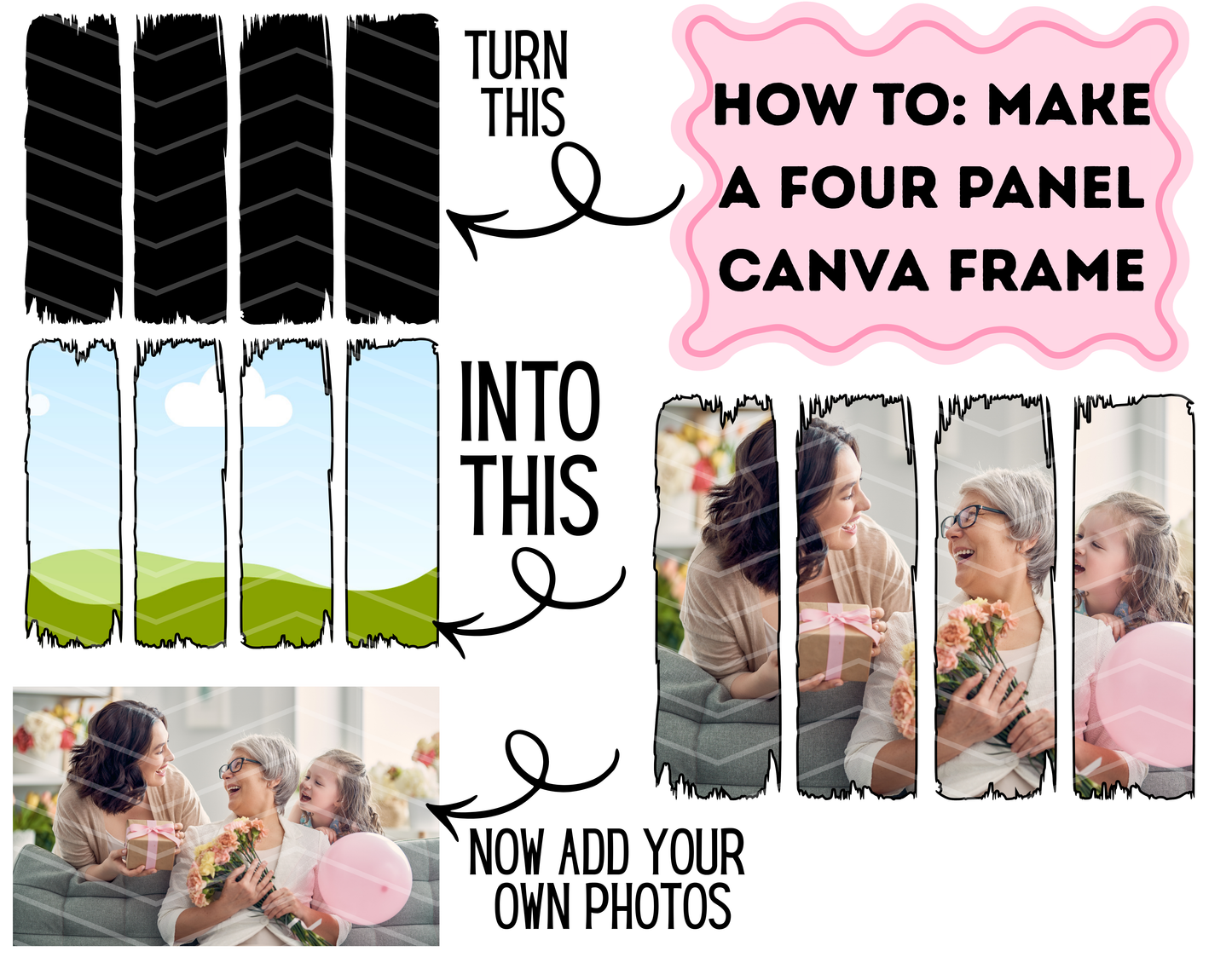
Learn how to turn simple brush panel PNGs into a fully functional 4-panel Canva frame that allows you (or your customers) to easily drop in photos.
Perfect for:
• Memorial shirts
• Mother’s Day gifts
• Family photo designs
• Custom sublimation layouts
• Personalized print designs
• Photo panel shirts & canvases
⚠️ REQUIREMENTS
You MUST have:
• Canva Pro (required for frame features used)
• Basic Canva knowledge
 PC or MacBook (Desktop or app Version of Canva) Canva Pro Account (Required)
 Not compatible with Canva mobile app Not compatible with tablet-only workflow
This tutorial does NOT require Photoshop.
No Procreate needed for this one until you’re creating your own artwork to use otherwise.
📌 WHAT YOU’LL LEARN
✔ How to turn brush stroke PNGs into usable Canva frames
✔ How to convert them into drag-and-drop photo areas
📦 WHAT’S INCLUDED
• Step-by-step digital tutorial
• Visual walkthrough of the 4-panel process
• Export setting guidance
🚫 PLEASE NOTE
• Digital product only
• No physical item
• This is NOT a pre-made editable template
• This is a learning tutorial
• Tutorial may not be resold or shared
You are learning how to build your own not receiving a done-for-you frame.
💡 WHY THIS IS HELPFUL
Instead of buying panel templates over and over, you’ll know how to:
• Make unlimited custom photo panel layouts
• Create your own unique frame styles
• Sell personalized designs professionally
• Elevate your product listings
You may also like
-
Broke Bitches Collab Pt. 2 – 18 Designer Digital Collaboration
Regular price $10.00 USDRegular priceUnit price per -
The Studio Collective – September 2026 Multi-Designer Digital Drive
Regular price $25.00 USDRegular priceUnit price per

